
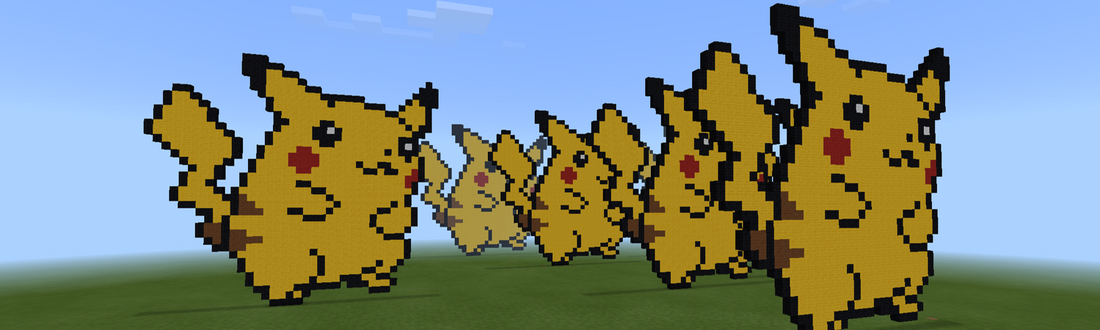
Minecraft pixel Art Painter
Minecraft Pixel Art Creator
Click a colour below, then click on the grid to start creating your pixel art!
Colour Palette (Wool IDs)
Minecraft Education Edition Code
Your generated JavaScript will appear here.
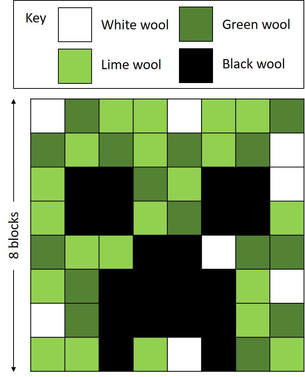
Minecraft Pixel Art Creeper (Created using wool)
How to Use the Minecraft Pixel Art Creator
Here are the simple steps to create your pixel art and get the code for Minecraft Education Edition:
Step 1
Adjust your settings
Create your design
Here are the simple steps to create your pixel art and get the code for Minecraft Education Edition:
Step 1
Adjust your settings
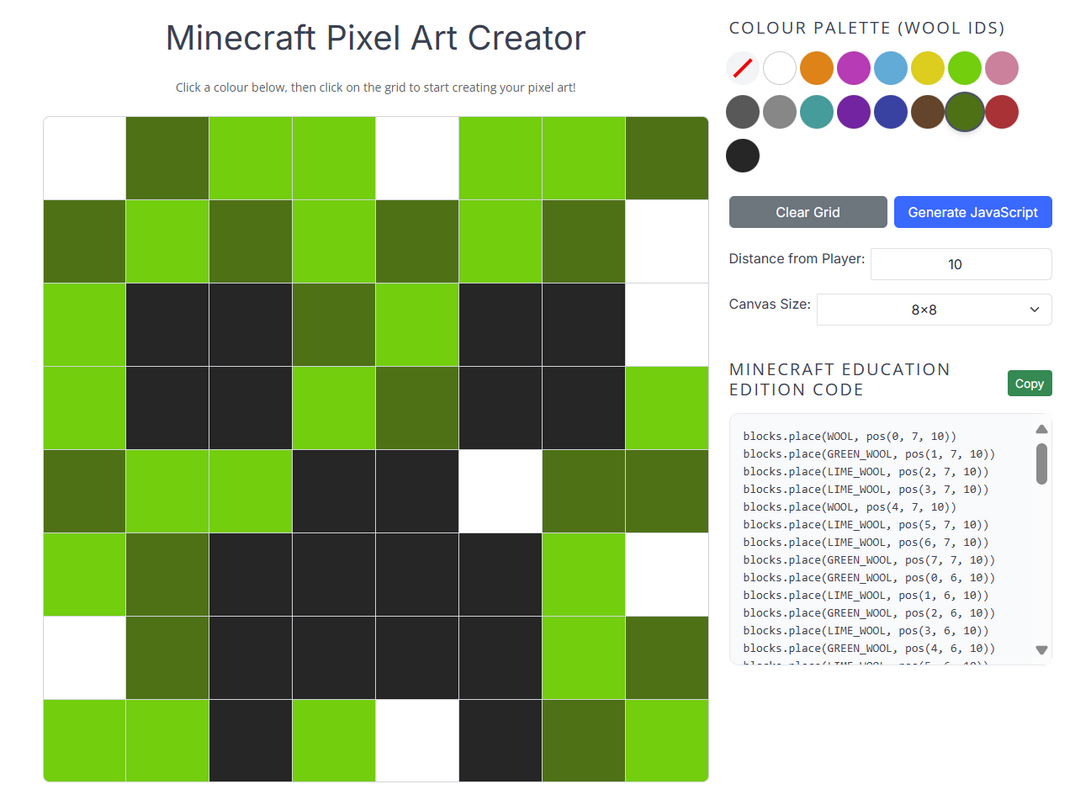
- Choose a size for your art from the Canvas Size dropdown (Choose from 8 x 8, 16 x 16, or 32 x 32).
- Set the distance from your player using the Distance from Player box.
Create your design
- Select a colour from the palette. The first circle is the eraser.
- Click on the grid to add or remove pixels.
Step 2
Get your code
Step 3
Get your code
- When you're finished, click the Generate JavaScript button.
- The code will appear in the box below. Click Copy to save it to your clipboard.
Step 3
- Open Minecraft Education Edition and create a New World (Preferably a super flat world).
- Launch MakeCode (by pressing the letter C).
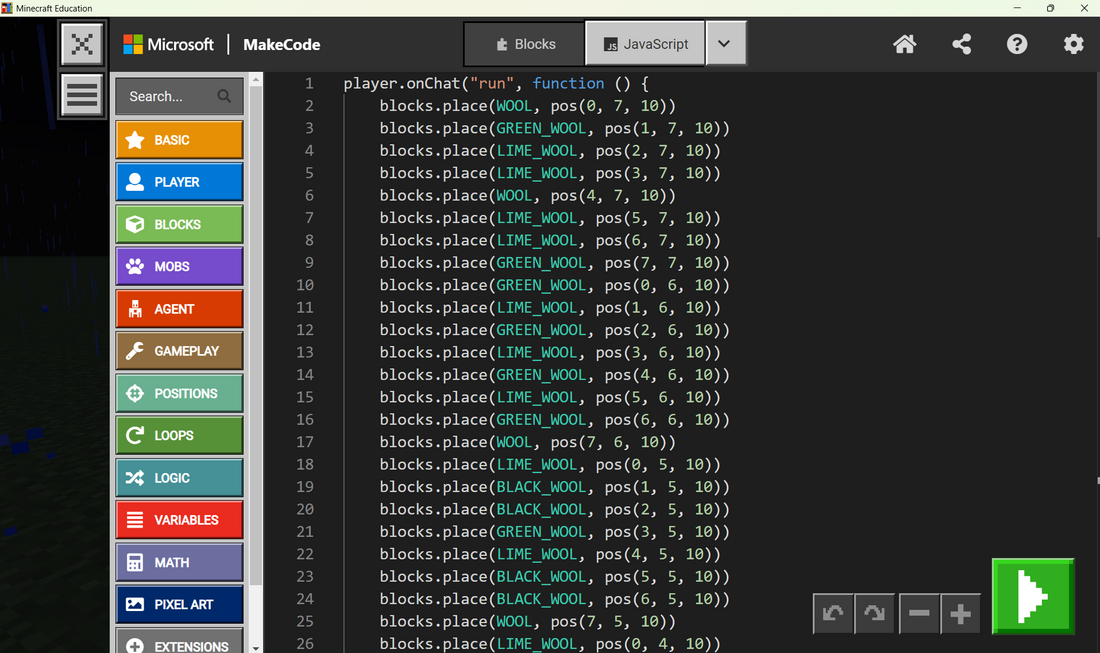
- Create a new program and select JavaScript.
- Paste the code directly into the player.onChat("run") block.
Step 3
Run your code
- Press the play button.
- Press 't' to open the chat window.
- Type in 'run' in the command line (followed by the Enter key) to run your code.

Minecraft Creeper Pixel Art (Created using MakeCode)